Runs and evidence
A Run records one analysis: its question, Methods, inputs, queries and results.
Read a result
Open Runs in the admin console and select an analysis.
- Read the question and conclusion.
- Follow the analysis path to see the Methods and metrics used.
- Select a step to inspect its tables and charts.
- Open Applied settings, Queries and Sources to review the evidence.
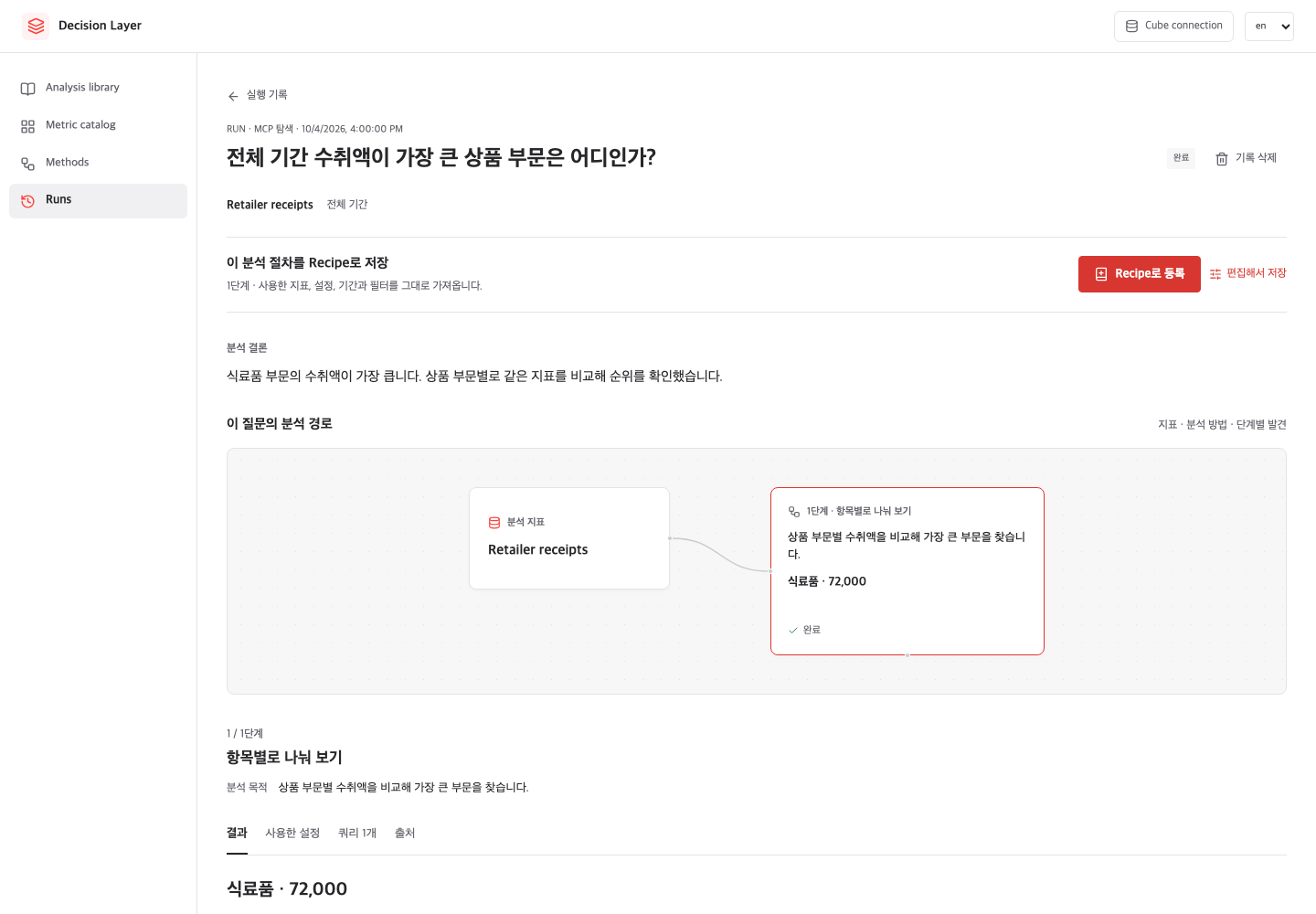
A step's purpose states what the caller wanted to investigate. Read its results and validation to assess what the evidence supports.
Check the period and validation
An omitted period waits for input. Querying all data requires an explicit selection and server policy approval.
Missing inputs or unmet data conditions may stop the analysis or request more information. A calculation can produce a result and still fail validation; inspect warnings and failure reasons.
API period settings and execution limits
scope.date_range specifies dates; scope.period: {mode: all} explicitly requests all data. Relative periods resolve to actual dates at execution and are recorded in the Run.
While waiting for input, MCP's set_run_scope or REST's PUT /runs/{id}/scope continues the same Run. REST requires the latest base_revision. Start a new Run to change the period after analysis begins.
Operators configure DL_EXECUTION_POLICY. Defaults disallow all-period execution and limit ranges to 366 days, queries to 30, rows to 50,000 and asynchronous waiting to 120 seconds. These limits do not estimate warehouse costs or guarantee query cancellation.
Reuse an analysis
Choose Register as Recipe on a completed Run to save its procedure. The next execution can select new dates and targets.
Saving a calculation that failed validation does not approve its findings. Subsequent executions apply the same validation.
When a definition is missing
AI can record missing definitions and proposed improvements in the Run. A model owner reviews the draft and applies changes in Cube.
Ask the question again after updating the model to create a new analysis using the available definitions. Historical Runs remain unchanged.
Manage records
Owners can delete Runs from the list or detail page after execution finishes. Deletion removes results and query records; a Recipe already registered from that Run remains available.
See Create a Recipe to compose a recurring procedure.